Schedule
The Schedule page lists all of your generator's scheduled runs and lets you create, edit, and delete them. Schedules use a simple start time + day picker + duration format and run automatically as long as the system is armed (see Generator Control → Arming behavior).
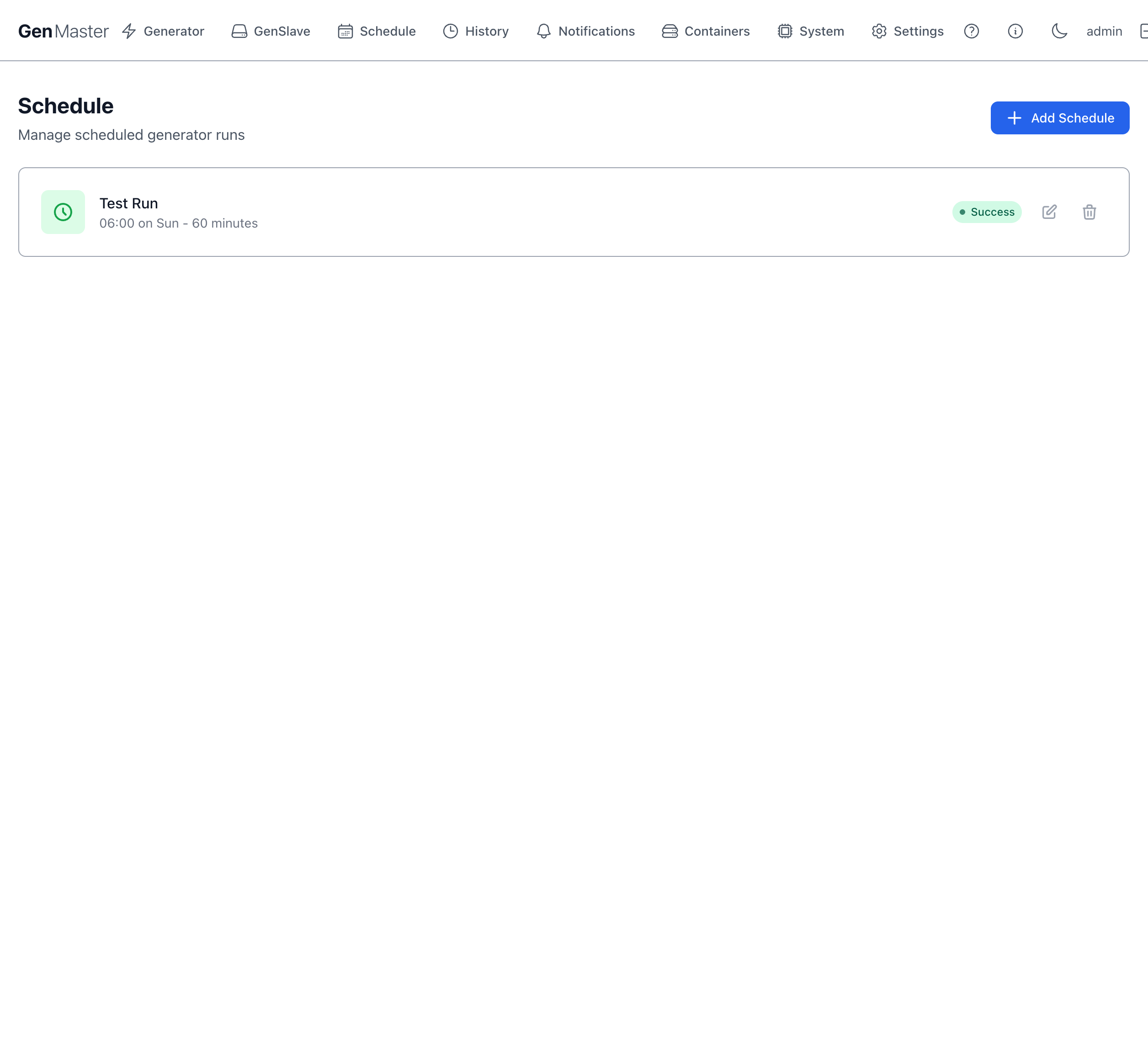
Schedule list
Each schedule appears as a row with:
| Element | Meaning |
|---|---|
| Name | A friendly label you choose (e.g. Test Run, Sunday Exercise). |
| Time / day summary | Plain-English version of the schedule (e.g. 06:00 on Sun - 60 minutes). |
| Status badge | Success (last run completed normally), Failed, or Pending (never run yet). |
| Edit (pencil) | Open the schedule editor. |
| Delete (trash) | Remove the schedule. |
Add Schedule
The Add Schedule button opens a Create Schedule dialog where you fill in:
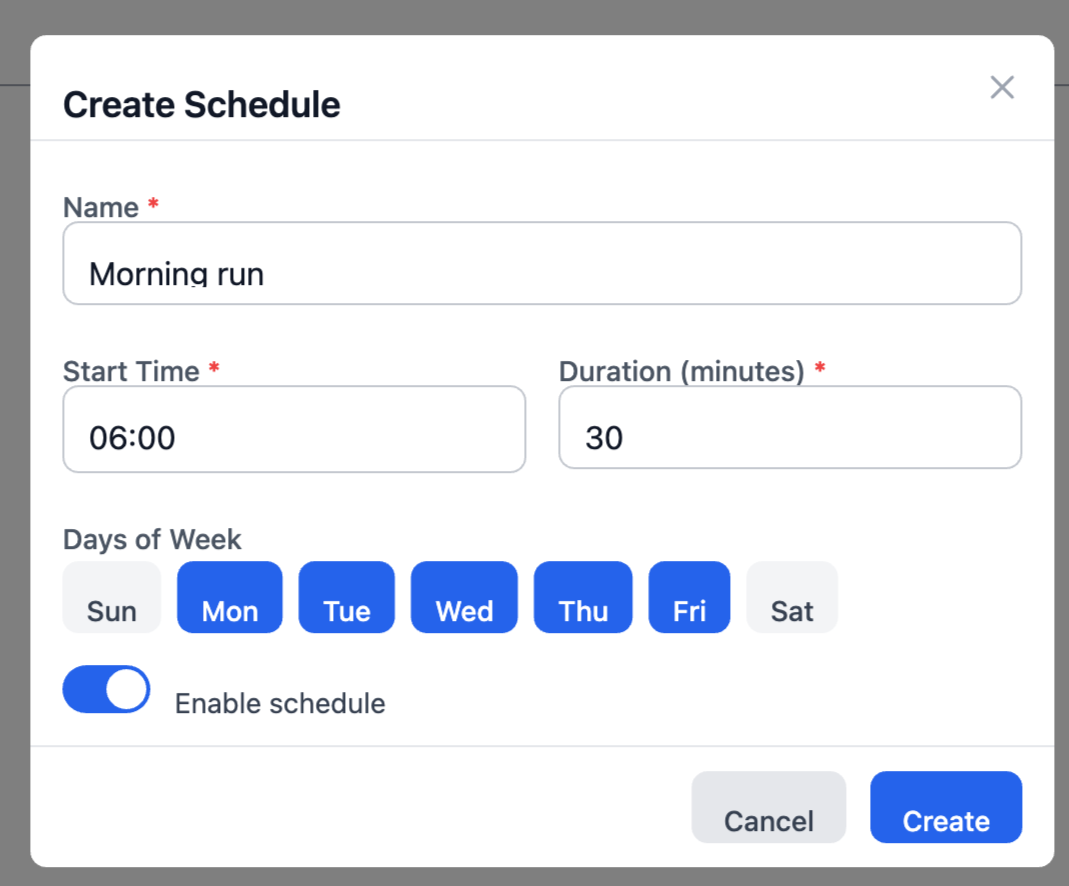
| Field | Format / example |
|---|---|
| Name | Free-form text (e.g. Morning run). Used as the label in the schedule list and run history. |
| Start Time | 24-hour time-of-day picker. The time the run will begin on each selected day. |
| Duration (minutes) | How long the run should last after start. The state machine will issue a stop command after this many minutes. |
| Days of Week | Pill buttons for Sun Mon Tue Wed Thu Fri Sat. Click each day you want the schedule to run. Selected days are highlighted blue. |
| Enable schedule | Toggle. When off, the schedule is kept in the list but skipped. Useful for temporarily pausing a schedule without losing its config. |
| Cancel / Create | Discard or save. |
Multi-day vs. single-day schedules
Pick multiple days for a schedule that should run repeatedly (e.g. weekday mornings: select Mon, Tue, Wed, Thu, Fri). Pick a single day for a once-a-week run (e.g. Sunday exercise).
Schedules respect the arming state
A scheduled run will be logged but skipped if GenMaster is disarmed when the trigger fires. Under the default Fail-Safe boot policy, a reboot leaves the system disarmed until the operator re-arms — so a schedule that fires within that window will be skipped. The skipped run shows up in the Notification History with the "disarmed" reason.
Editing and deleting
- Edit opens the same Create Schedule dialog with current values pre-filled. Saving recalculates the next-run time immediately.
- Delete removes the schedule. There is no undo. Past run history for that schedule remains in Run History.
Recommended setups
| Use case | Time | Days | Duration | Notes |
|---|---|---|---|---|
| Weekly exercise | 06:00 |
Sun | 15 |
Standard maintenance run, Sunday early morning. |
| Bi-weekly | 06:00 |
Sun (manually disable on alternate weeks) | 30 |
Or use the Exercise Schedule panel which has built-in bi-weekly support. |
| Monthly load test | 12:00 |
Sun (1st Sunday — toggle manually) | 60 |
Pairs well with monthly load draw. |
| Weekday morning warm-up | 06:00 |
Mon–Fri | 30 |
All five weekdays. |
If your generator already runs frequently from Victron triggers, an explicit exercise schedule may be unnecessary; check Run History over a 30-day window to confirm.
Difference vs. the Exercise Schedule on the Generator page
The Schedule page is for ad-hoc, repeated schedules — you can create as many as you want and they're independent. The Exercise Schedule on the Generator Control page is a single, dedicated schedule designed specifically for periodic generator exercise runs (with built-in support for Daily, Weekly, Bi-weekly, Monthly, and a "Run Now" button).
Use Schedule for: morning warm-ups, scheduled load tests, recurring scheduled draws. Use Exercise Schedule for: routine maintenance exercise runs.
What's next
- View past scheduled runs in Run History.
- Use the dedicated maintenance scheduler at Generator Control → Exercise Schedule.