Common UI
A handful of header-bar elements appear on every page. This section documents what each one does and how to use it.

GenMaster wordmark
In the top-left corner. Clicking it always returns you to the Generator Control home page, regardless of which page you're currently on.
Top navigation tabs
Eight tabs that route to the major sections of the app. The currently active tab is highlighted (color and icon style).
| Tab | Page in this manual |
|---|---|
| Generator | Generator Control |
| GenSlave | GenSlave |
| Schedule | Schedule |
| History | Run History |
| Notifications | Notifications |
| Containers | Containers |
| System | System |
| Settings | Settings |
The header is sticky — it stays visible at the top of the viewport even as you scroll long pages.
Help & Documentation (?)
The question-mark icon in the right portion of the header opens the Help & Documentation dialog.
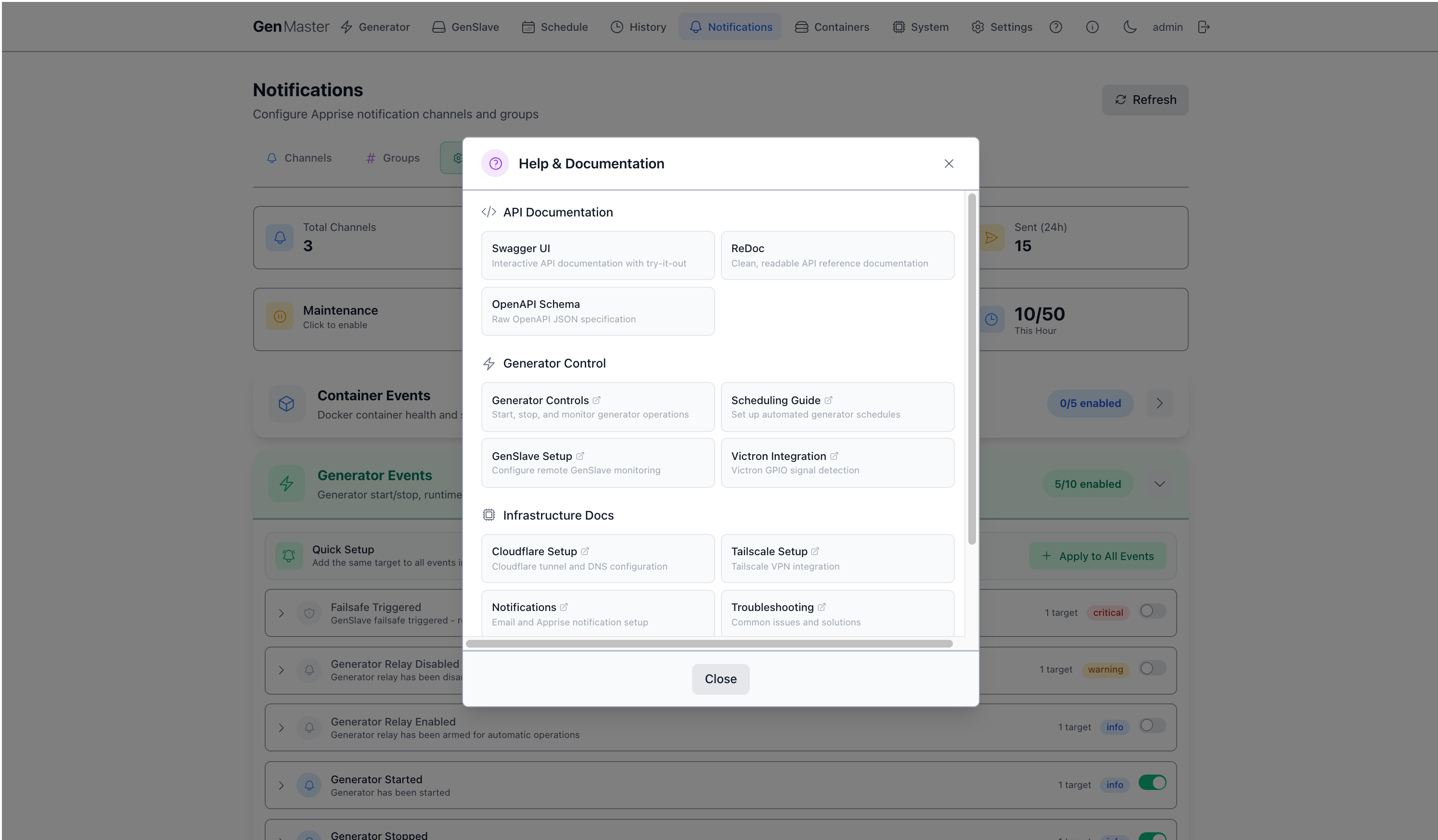
The dialog is organized into four sections:
| Section | Links |
|---|---|
| API Documentation | Swagger UI (interactive API explorer), ReDoc (clean API reference), OpenAPI Schema (raw JSON spec). |
| Generator Control | Generator Controls, Scheduling Guide, GenSlave Setup, Victron Integration. |
| Infrastructure Docs | Cloudflare Setup, Tailscale Setup, Notifications, Troubleshooting. |
| Project Resources | Full Documentation (this site), GitHub Repository (source + issues). |
External links open in a new tab.
About (i)
The info-circle icon opens the About dialog.
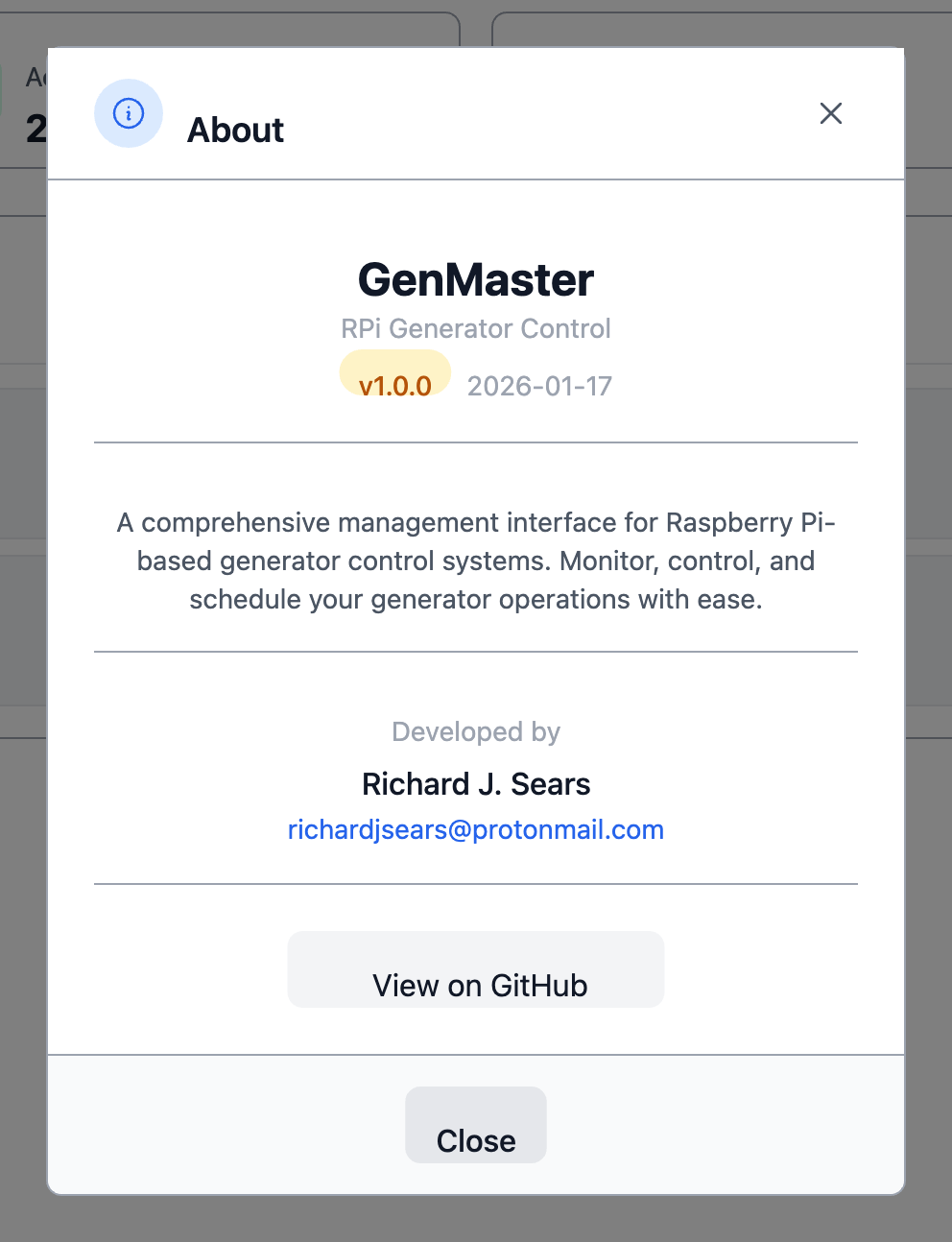
Shows:
- GenMaster wordmark and version (e.g.
v1.0.0 - Beta-2026). - A short description of the project.
- Developer (Richard J. Sears) and contact email.
- A "View on GitHub" link to the source repository.
Theme toggle (sun / moon)
Switches between Modern Light and Modern Dark themes. Same effect as picking the active theme on Settings → Appearance, just one click instead of three.
The icon you see is for the target theme, not the current one — i.e. when you're in light mode, you see a moon (click to go dark), and vice versa.
User badge (admin)
Shows the username of the currently logged-in user. Clicking it (in some builds) jumps to Settings → Account. Otherwise it's display-only.
Logout (door icon)
Ends the current session immediately. You'll be redirected to the login page.
Auto-logout
Sessions also expire automatically after the Session Timeout configured in Settings → Security. The default is 30 minutes of idle time.
Login page
When you're not signed in, GenMaster redirects you to a simple username + password form. Default credentials are admin / admin on a fresh install — change them immediately under Settings → Account.
After three failed login attempts (configurable in Security), the account locks for the configured Lockout Duration.
Keyboard shortcuts
| Shortcut | Action |
|---|---|
Esc |
Close any open modal / dialog. |
Tab / Shift+Tab |
Navigate form fields. |
Enter |
Submit the focused form. |
(Custom shortcuts may vary by build — most pages do not register any.)
Background indicators
A few persistent visual cues you may notice:
- Sticky header tint — when GenSlave goes offline, the GenSlave nav tab tints red/yellow to flag the issue across pages.
- In-page badges (e.g.
Online,Armed,Disabled) — color-coded: green for healthy/active, orange for warning/armed, red for error/danger, gray for inactive.
Error toasts
When an action fails (e.g. starting the generator while disarmed, saving with invalid input), a toast notification appears at the bottom-right corner with the error message. Toasts auto-dismiss after a few seconds; click the X to dismiss immediately.