Notifications
The Notifications page is where you configure how GenMaster tells you about generator events — start/stop, scheduled run results, failsafe trips, system warnings, and more. It uses Apprise under the hood, which means 80+ notification services are supported (Telegram, Slack, Discord, Email, ntfy, Pushover, Microsoft Teams, etc.).
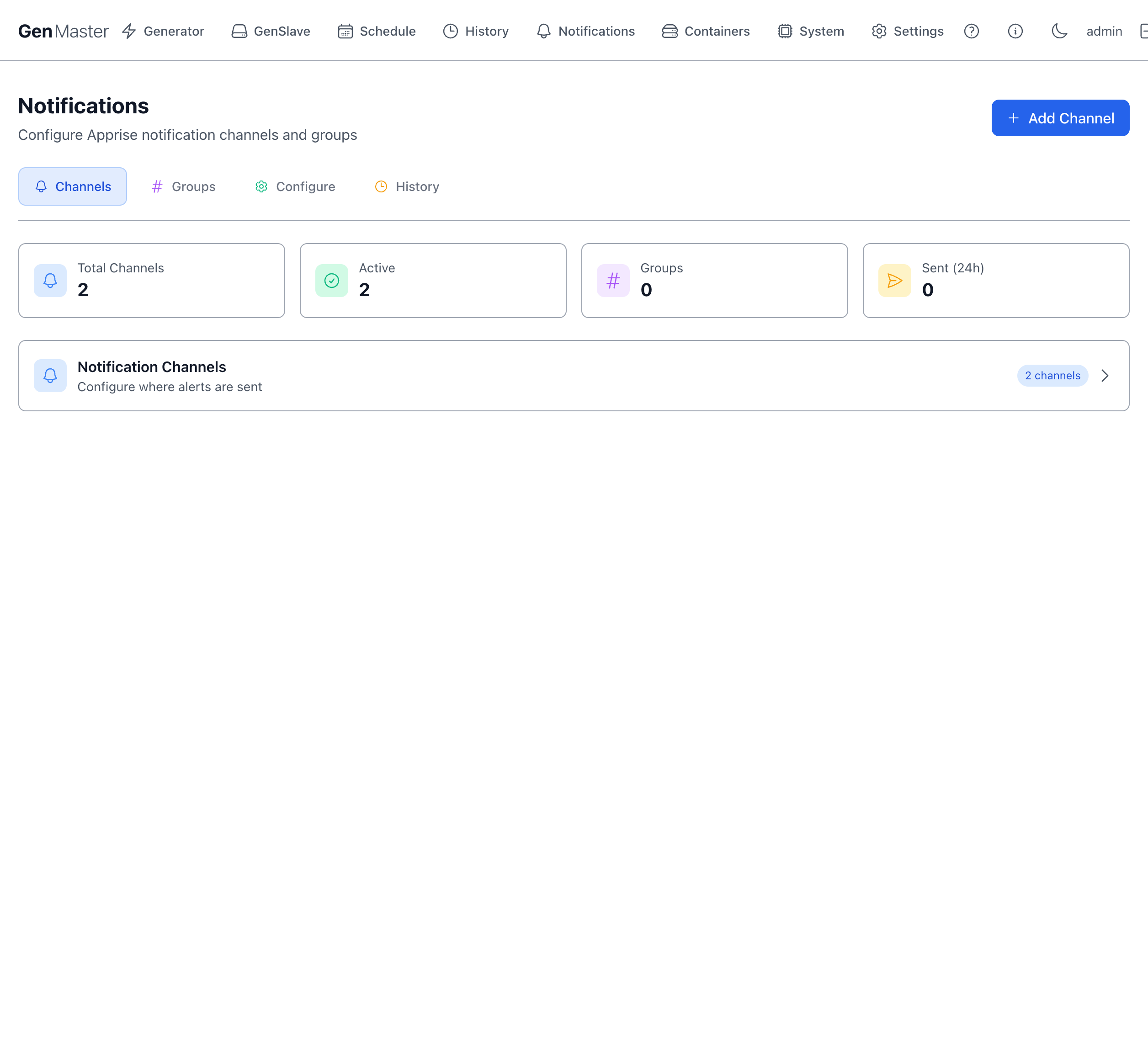
Overview row
Four stat cards at the top show:
| Card | Meaning |
|---|---|
| Total Channels | How many notification destinations are configured. |
| Active | How many of those are currently enabled. |
| Groups | Number of channel groups (collections of channels). |
| Sent (24h) | Total notifications dispatched in the last 24 hours across all channels. |
Sub-tabs
The page is organized into four tabs:
Channels
The Channels tab is the default view. The Notification Channels card collapses by default — click it to expand and see all configured channels.
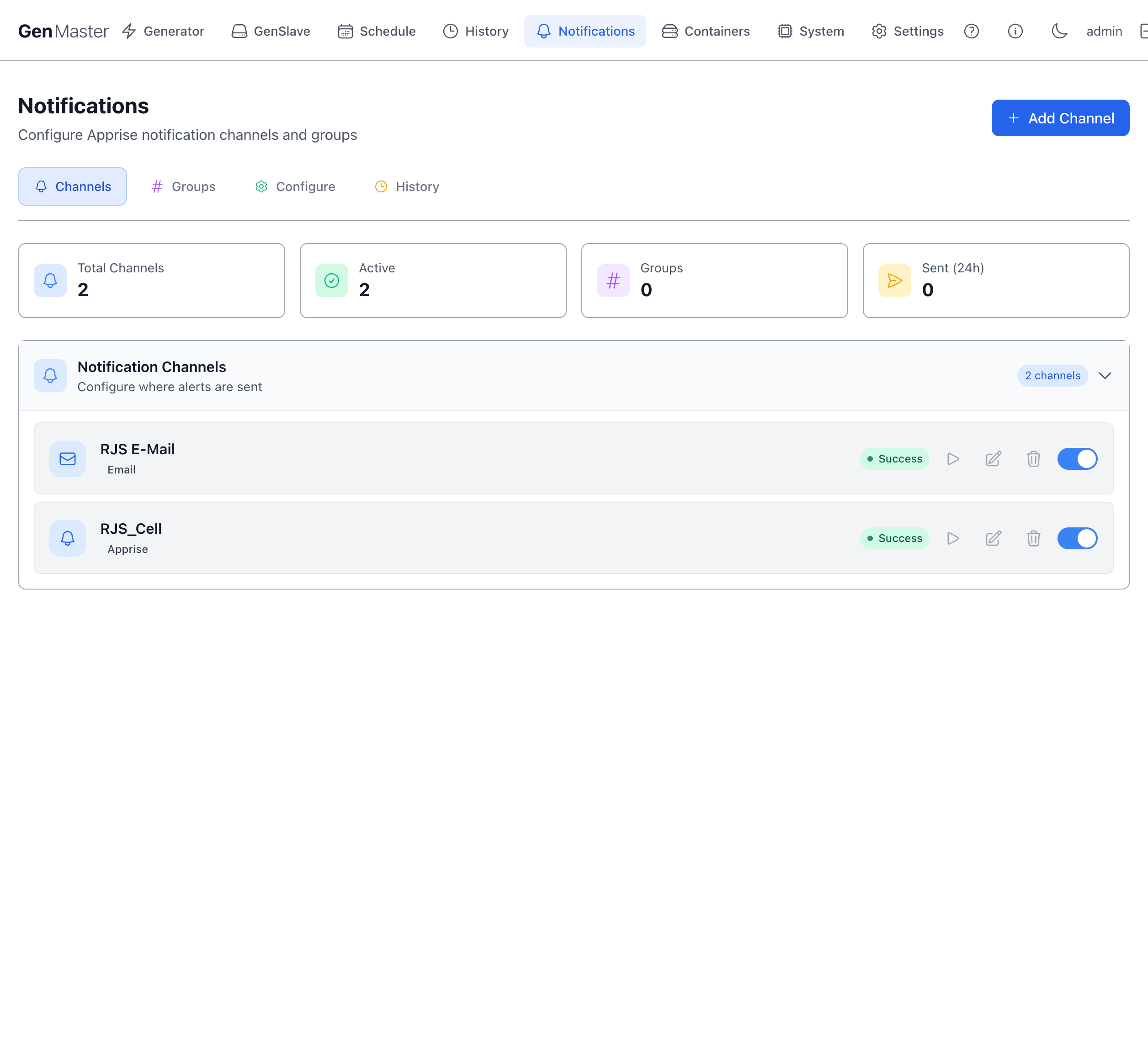
Each row in the expanded list shows: an icon (envelope for Email, bell/etc. for Apprise types), the channel name, the channel type (Email, Apprise), a Success/Failed badge from the most recent test, and a row of action icons:
| Icon | Action |
|---|---|
| ▷ (test) | Send a test notification to this channel only. |
| ✏ (edit) | Open the Edit Channel dialog. |
| 🗑 (delete) | Remove the channel. |
| Toggle | Enable / disable the channel without deleting it. |
Editing an Email channel
Clicking the edit (pencil) icon on an Email channel opens this form:
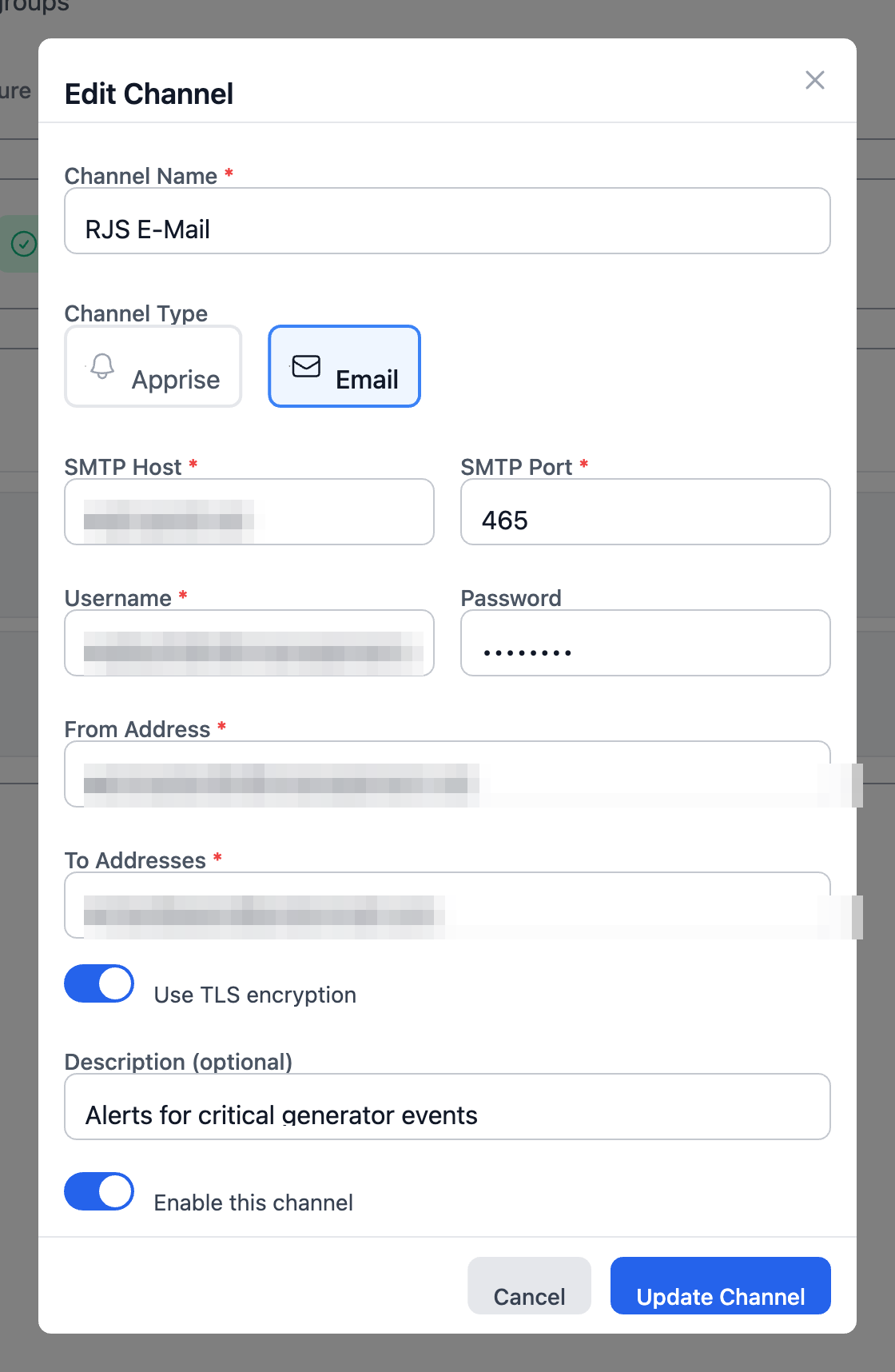
| Field | Notes |
|---|---|
| Channel Name | Friendly label, e.g. Ops Email. |
| Channel Type | Toggle between Apprise and Email. Email gives you direct SMTP fields (below); Apprise gives you a single URL field for any of 80+ services. |
| SMTP Host | Mail server hostname, e.g. mail.gandi.net, smtp.gmail.com. |
| SMTP Port | Typically 465 (SSL) or 587 (STARTTLS). |
| Username / Password | SMTP authentication credentials. |
| From Address | The From: header on outgoing alerts. |
| To Addresses | Comma-separated list of recipients. |
| Use TLS encryption | Toggle. Should be on for production mail servers. |
| Description (optional) | A note for yourself (e.g. "Alerts for critical generator events"). |
| Enable this channel | Master on/off. Disabled channels are kept but skipped. |
Sensitive data
SMTP credentials and recipient addresses are sensitive. Never share unmasked screenshots of this dialog.
Editing an Apprise channel
Apprise channels use a single URL string that encodes the destination service and credentials.
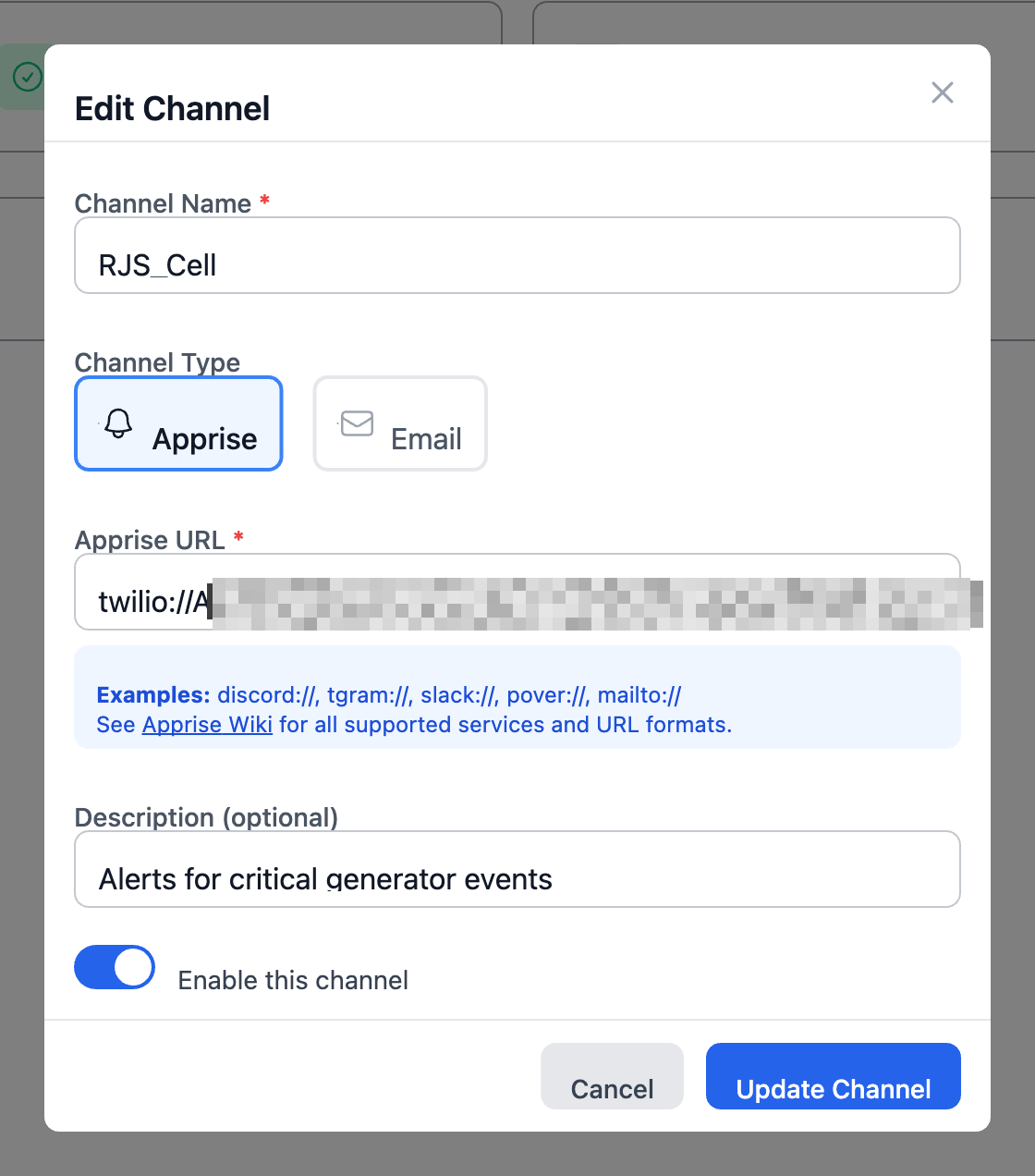
| Field | Notes |
|---|---|
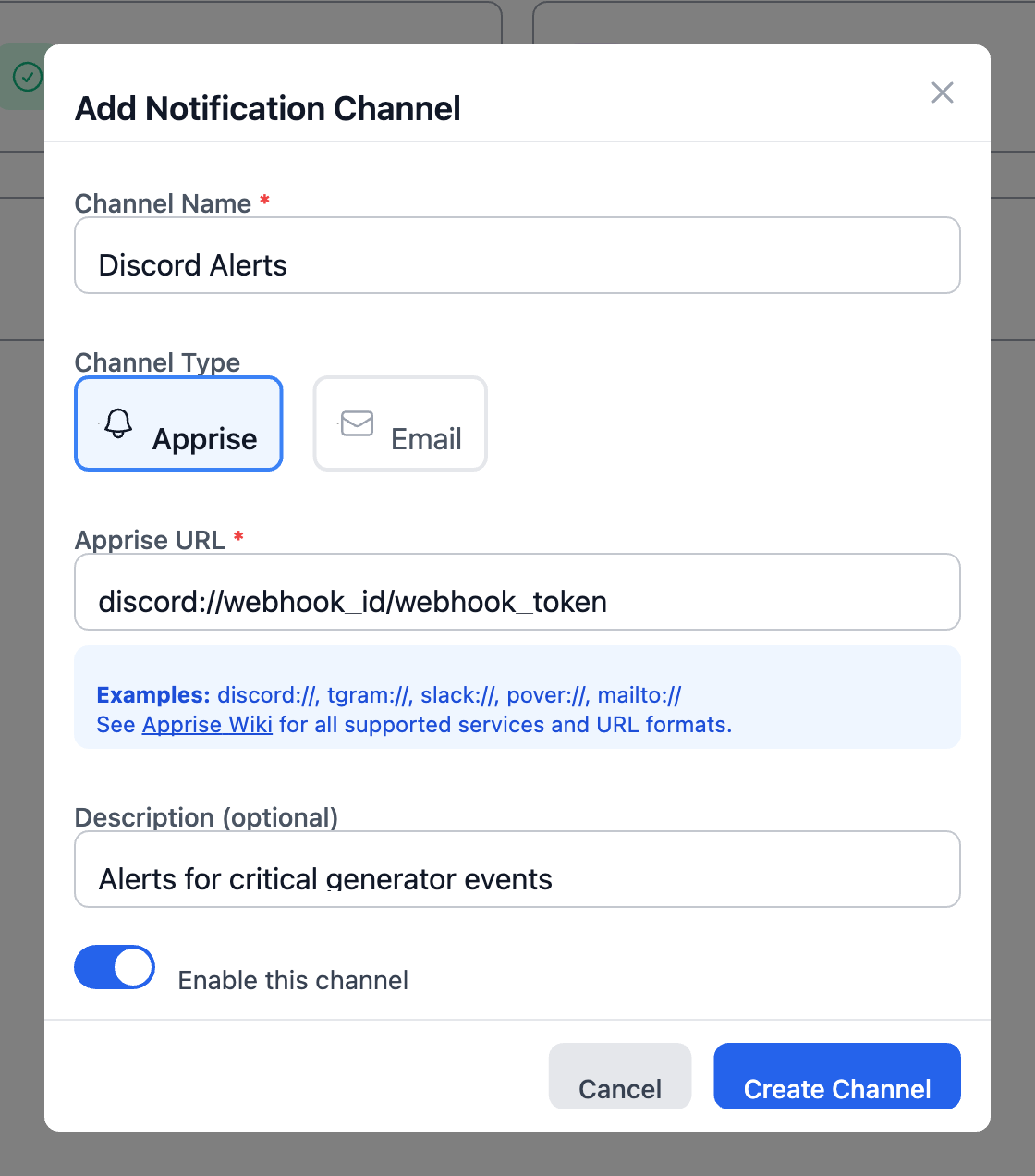
| Apprise URL | Single URL string, e.g. tgram://bottoken/chatid, slack://TokenA/TokenB/TokenC, discord://webhook_id/webhook_token, twilio://AccountSID:AuthToken@FromNumber/ToNumber. |
| Examples row | The dialog shows quick-start prefixes: discord://, tgram://, slack://, pover://, mailto://. |
| Apprise Wiki | Linked from the form for the full URL syntax of all supported services. |
Quick service URL reference
- Telegram:
tgram://BOT_TOKEN/CHAT_ID - Discord:
discord://WEBHOOK_ID/WEBHOOK_TOKEN - Slack:
slack://TokenA/TokenB/TokenC(or webhooks withslack://hooks.slack.com/services/...) - Pushover:
pover://USER_KEY@APP_TOKEN - ntfy:
ntfy://TOPIC(public) orntfys://USERNAME:PASSWORD@HOST/TOPIC(private) - Twilio SMS:
twilio://ACCOUNT_SID:AUTH_TOKEN@FROM_NUMBER/TO_NUMBER - Email:
mailto://USER:PASS@SMTP_HOST?from=FROM&to=TO - Microsoft Teams:
msteams://TOKEN_A/TOKEN_B/TOKEN_C/ - See the full list at the Apprise wiki. Each channel has:
- A name (your label, e.g. "My Telegram", "Ops Email").
- An Apprise URL — see Apprise URL formats. Examples:
- Telegram:
tgram://bottoken/chatid - Slack:
slack://TokenA/TokenB/TokenC/ - Discord:
discord://webhook_id/webhook_token - Email:
mailto://user:pass@gmail.com - ntfy:
ntfy://topic-name
- Telegram:
- A status toggle — enable/disable without deleting.
- A test button — fires a test notification to that channel only.
The Add Channel button opens a modal where you fill in name + URL + initial enabled state.
Sensitive data
Apprise URLs frequently contain bot tokens, webhook secrets, or passwords. Treat the Channels tab as sensitive — mask URLs before sharing screenshots.
Groups
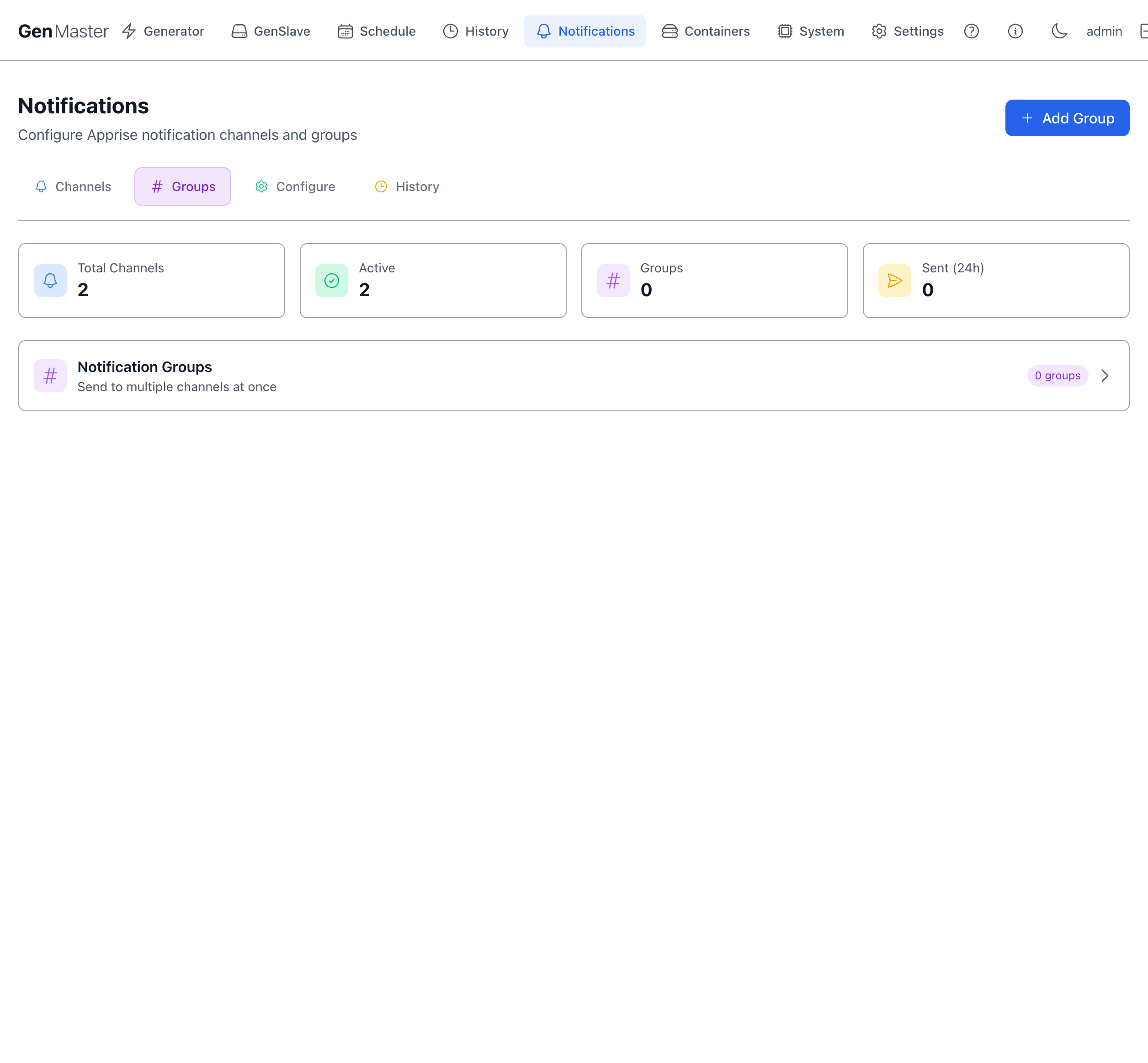
Groups let you bundle channels and address them as one unit when configuring rules. For example, an Ops Team group might contain a Slack channel, two emails, and a Telegram bot — and you'd then send Generator Failure events to the whole group at once.
Each group has:
- A name.
- A list of member channels.
- An edit / delete action.
Use Add Group to create a new one and pick its members from your existing channels.
Configure
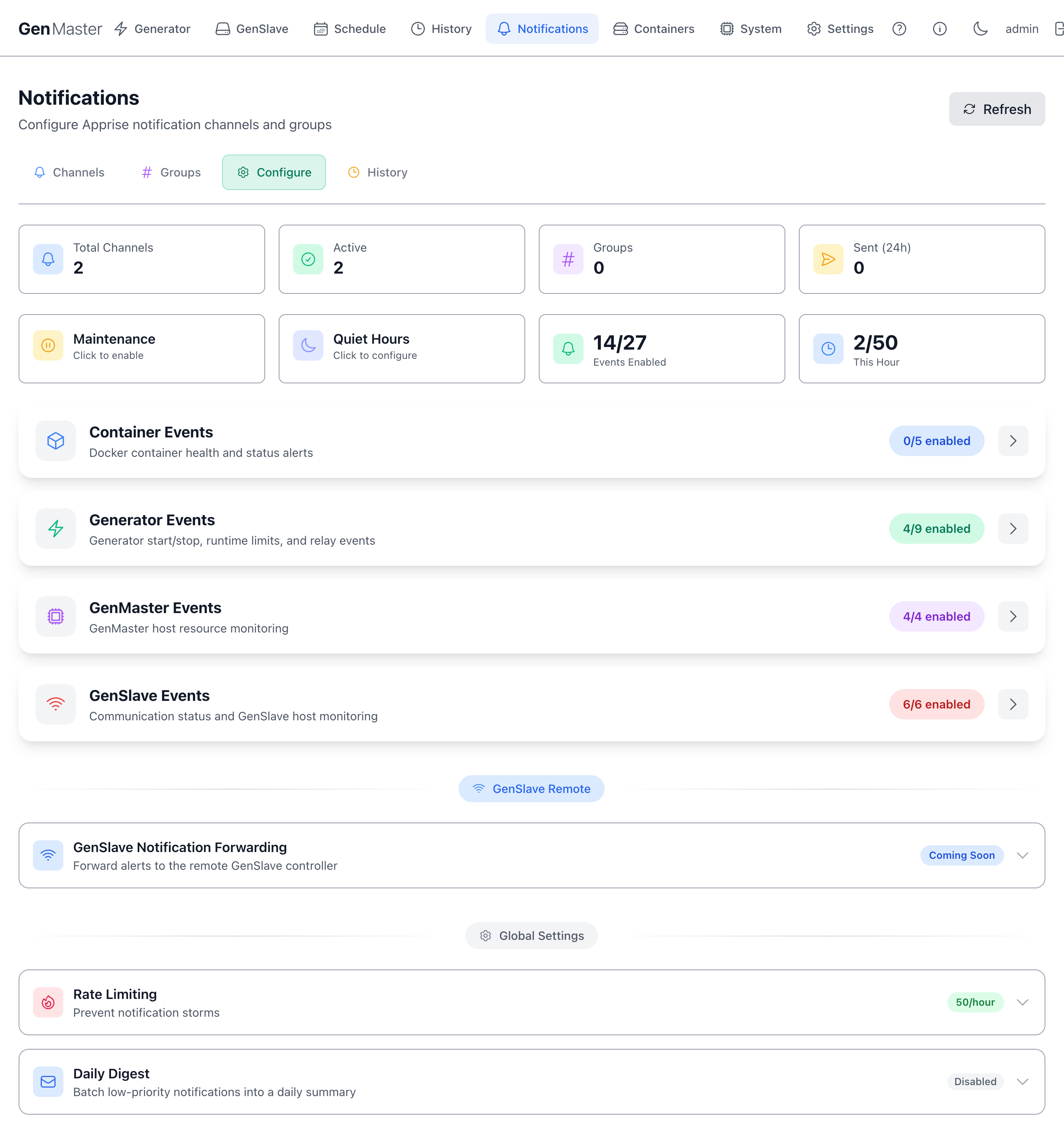
The rule engine. The Configure tab is split into three areas: a row of status tiles, four collapsible event categories, and a Global Settings block at the bottom (with a separate "GenSlave Remote" section in between for forwarded notifications).
Status tiles
| Tile | Meaning |
|---|---|
| Total Channels | Count of configured channel destinations. |
| Active | How many of those are currently enabled. |
| Groups | Count of channel groups. |
| Sent (24h) | Notifications delivered in the last 24 hours. |
| Maintenance | Click to enable maintenance mode (suppresses all notifications). |
| Quiet Hours | Click to schedule a daily window where non-critical alerts are suppressed. |
| N/36 Events Enabled | How many of the 36 individual event types currently have at least one target. The new EPO, HOA, Quiet override, and manual-run events from Hardware Switches are part of this total. |
| N/50 This Hour | Notifications sent in the current hour vs. the Rate Limiting ceiling. |
Maintenance mode
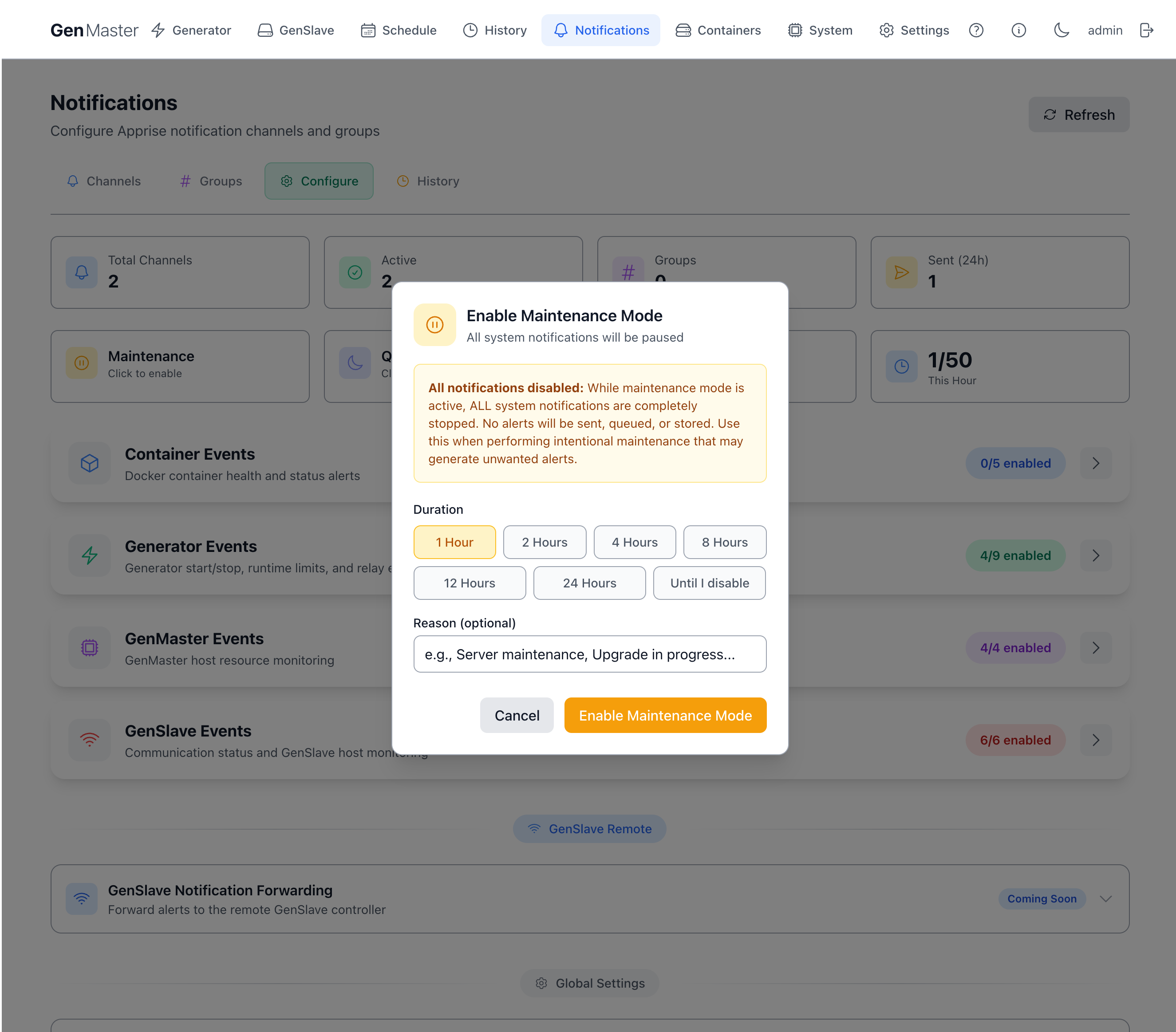
Click the Maintenance tile to open the modal:
| Field | Purpose |
|---|---|
| Duration | Pick how long maintenance lasts: 1, 2, 4, 8, 12, or 24 hours, or Until I disable for an open-ended window. |
| Reason (optional) | Free-text label so future-you remembers why you turned alerts off. |
| Cancel | Close without enabling. |
| Enable Maintenance Mode | Suppress all notifications for the chosen duration. |
Maintenance disables ALL alerts
While maintenance mode is active, every notification — including critical and failsafe events — is completely stopped. They're not queued or delivered later; they're discarded. Only use this for short, intentional windows where you'll generate alerts you don't want to be paged for.
Quiet Hours
Click the Quiet Hours tile to open the modal:
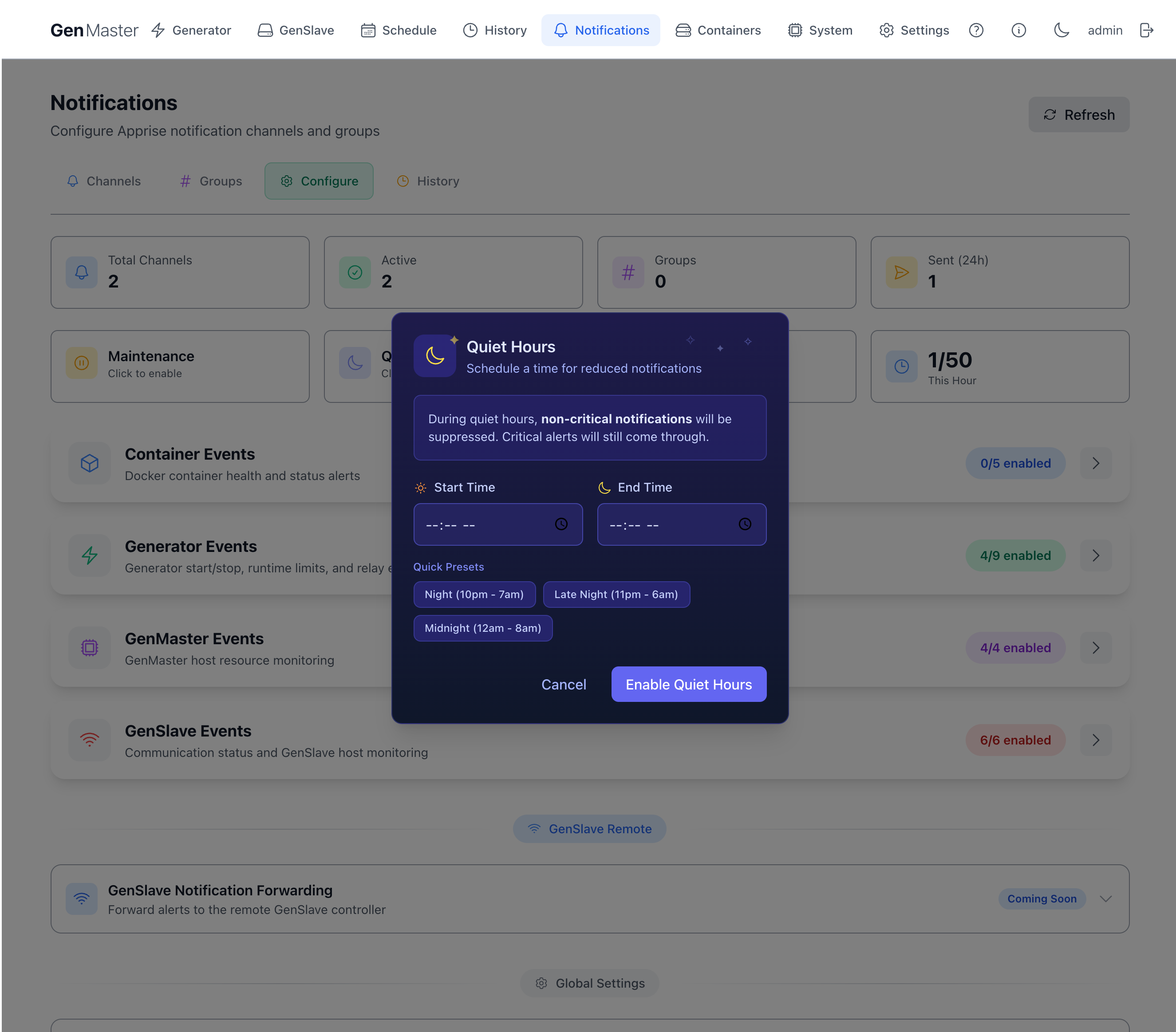
| Field | Purpose |
|---|---|
| Start Time | When quiet hours begin (24-hour format). |
| End Time | When quiet hours end (next day if End ≤ Start). |
| Quick Presets | One-click options: Night (10pm – 7am), Late Night (11pm – 6am), Midnight (12am – 8am). |
| Cancel | Close without saving. |
| Enable Quiet Hours | Activate the schedule. |
Unlike maintenance mode, quiet hours only suppress non-critical events — critical severity alerts (like failsafe triggers and communication loss) still come through.
Event categories
Each category is a collapsible row that lists every event type GenMaster knows how to fire. Click a row to expand it and see the events it contains. Each event row has:
- A toggle on the right to enable/disable the event entirely.
- A target count ("1 target", "0 targets") showing how many channels/groups will receive it.
- A severity badge (
info,warning,critical). - A chevron
>to open the per-event detail panel where you pick channels/groups and optionally edit the message template.
Each category also shows a Quick Setup row with an Apply to All Events button — use this to add the same channel target to every event in the category in one click.
Container Events (5 events)
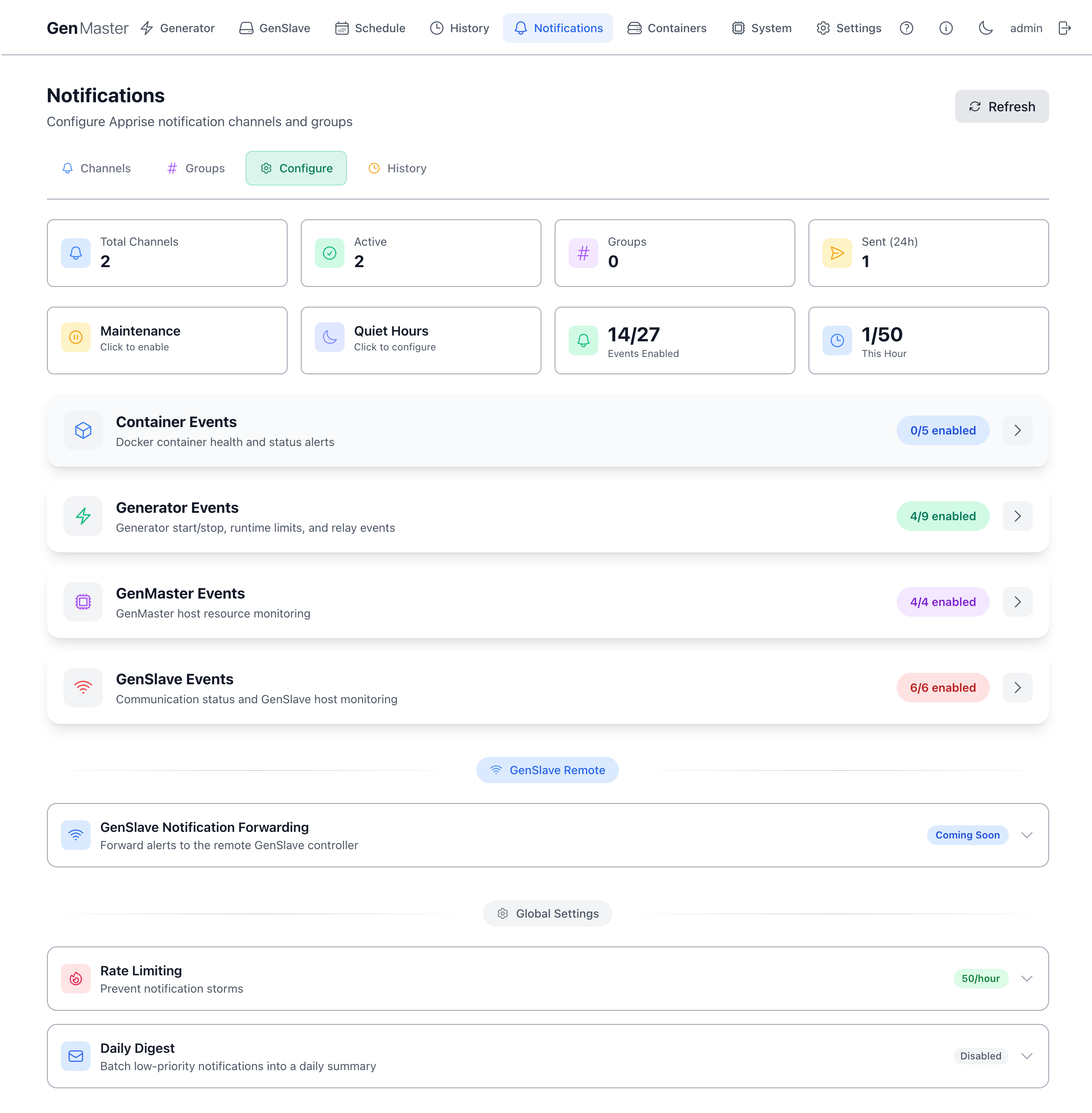
Docker container health and status alerts. By default these are off (0/5 enabled).
| Event | Severity | Triggers when |
|---|---|---|
| Container High CPU | warning | A container's CPU usage exceeds the configured threshold. |
| Container High Memory | warning | A container's memory usage exceeds the configured threshold. |
| Container Restarted | info | A container was automatically restarted (e.g. after a crash). |
| Container Stopped | warning | A container has stopped unexpectedly. |
| Container Unhealthy | warning | A container's healthcheck has failed. |
Generator Events (18 events)
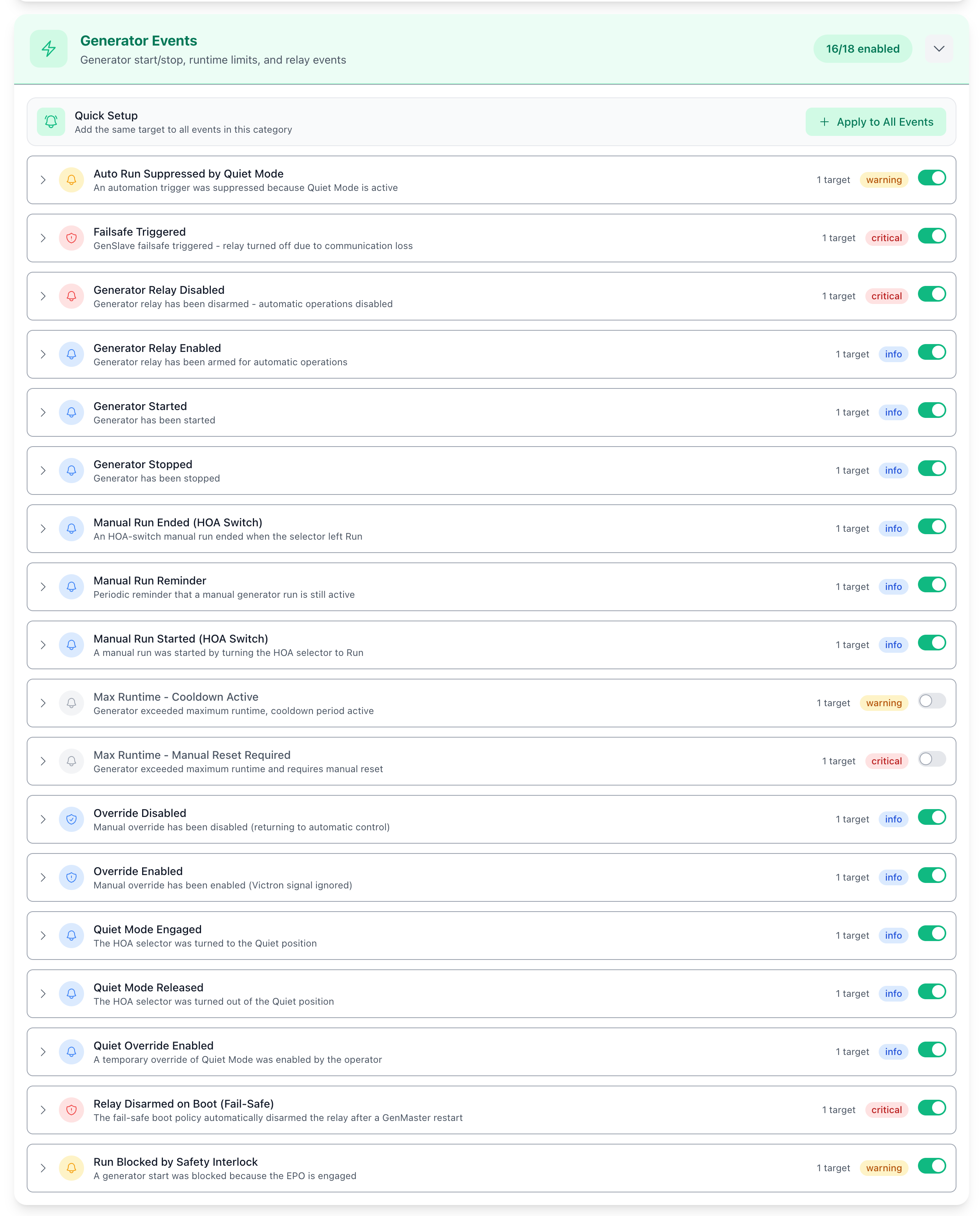
The core operational events around the generator itself, including the events for the optional HOA selector and Quiet override (see Hardware Switches).
| Event | Severity | Triggers when |
|---|---|---|
| Auto Run Suppressed by Quiet Mode | warning | An automatic trigger (Victron, schedule, exercise) wanted to start the generator while the HOA selector was in Quiet without an override — the run was suppressed. |
| Failsafe Triggered | critical | GenSlave's failsafe fired and forced the relay off due to communication loss. |
| Generator Relay Disabled | warning | The relay was disarmed (automatic operations now blocked). |
| Generator Relay Enabled | info | The relay was armed (automatic operations now allowed). |
| Generator Started | info | The generator entered the running state. |
| Generator Stopped | info | The generator entered the stopped state. |
| Manual Run Ended (HOA Switch) | info | An HOA-Run-triggered manual run ended when the operator left Run. |
| Manual Run Reminder | info | A periodic reminder fired during a long-running manual or HOA-Run run. Interval is configurable (default 2 hours; see manual_run_reminder_interval_hours). |
| Manual Run Started (HOA Switch) | info | A manual run started because the operator turned the HOA selector to Run. |
| Max Runtime — Cooldown Active | warning | Max runtime hit; cooldown window in progress. |
| Max Runtime — Manual Reset Required | critical | Max runtime hit and the policy requires manual re-arm before the generator can run again. |
| Override Disabled | info | Manual override turned off (returning to automatic Victron control). |
| Override Enabled | warning | Manual override turned on (Victron signal ignored). |
| Quiet Mode Engaged | info | The HOA selector was turned to the Quiet position. |
| Quiet Mode Released | info | The HOA selector was turned out of the Quiet position. |
| Quiet Override Enabled | info | A temporary Quiet override was enabled from the Generator page. |
| Relay Disarmed on Boot (Fail-Safe) | warning | The fail-safe boot policy automatically disarmed the relay after a GenMaster restart. See Boot Arming Policy. |
| Run Blocked by Safety Interlock | warning | A start attempt (manual, HOA Run, Victron, scheduled) was refused because the GenSlave EPO was engaged. |
GenMaster Events (5 events)
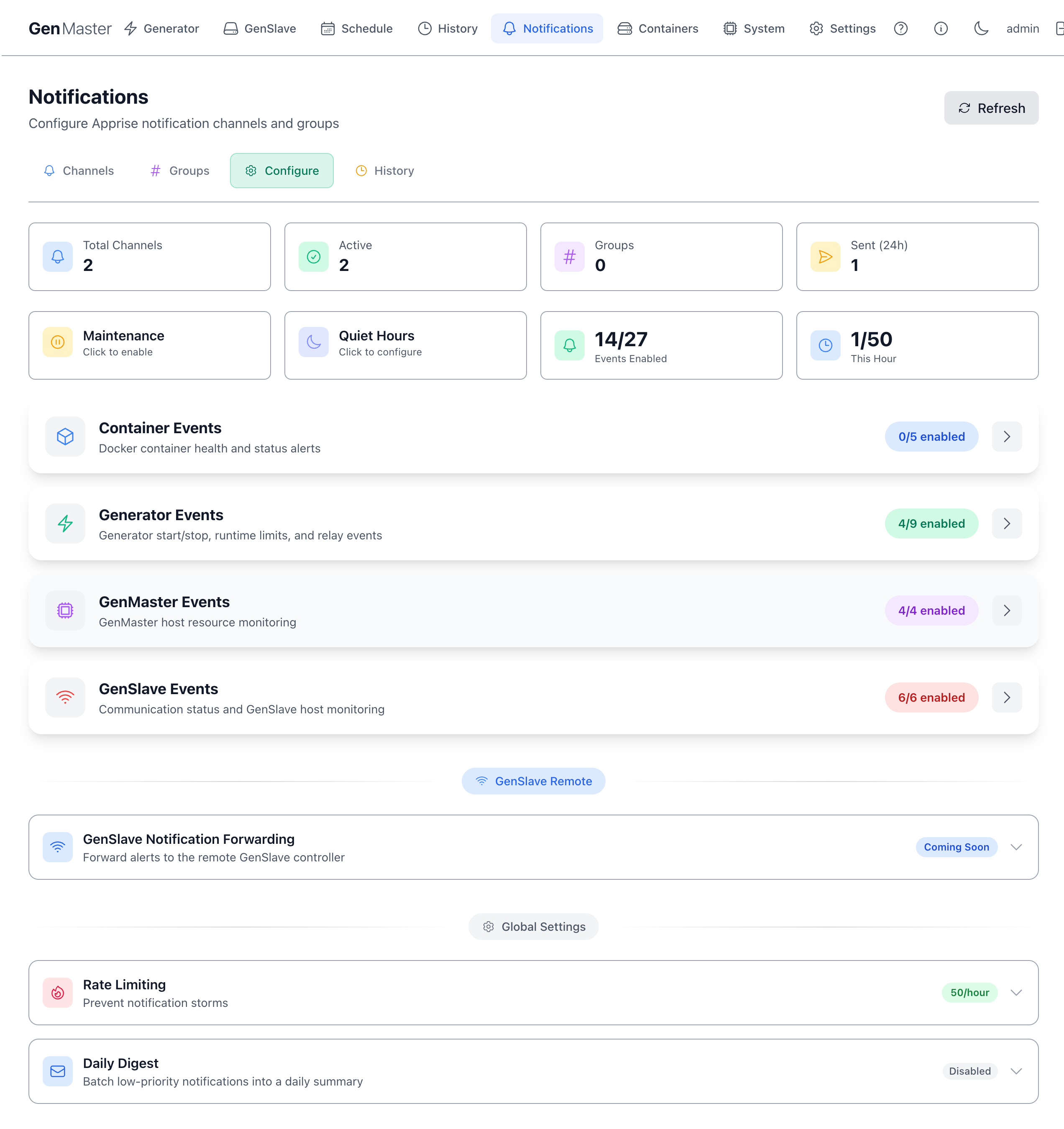
Resource health for the GenMaster Pi 5 host itself, plus a one-shot boot-time alert if the hardware switches aren't in their expected positions.
| Event | Severity | Triggers when |
|---|---|---|
| GenMaster Boot — Hardware Switch State | warning | Fires once ~20 s after GenMaster boots if the GenSlave EPO is engaged or the HOA selector is not in Auto. A fully-normal boot (EPO released, HOA Auto) fires nothing. Lets the operator know the system came up into a non-default state — useful after a power cycle or a long-distance reboot. |
| GenMaster Disk Space Low | warning | Free disk space on the GenMaster host falls below threshold. |
| GenMaster High CPU Temperature | warning | CPU core temperature is high (typically >75°C). |
| GenMaster High CPU Usage | warning | Sustained high CPU utilization. |
| GenMaster High Memory Usage | warning | RAM usage exceeds the configured threshold. |
The four resource events are enabled by default — the canary alerts that tell you the master controller itself is in trouble. The Boot — Hardware Switch State event ships with one target by default but you can route it elsewhere or disable it if you don't have the switches installed.
GenSlave Events (8 events)
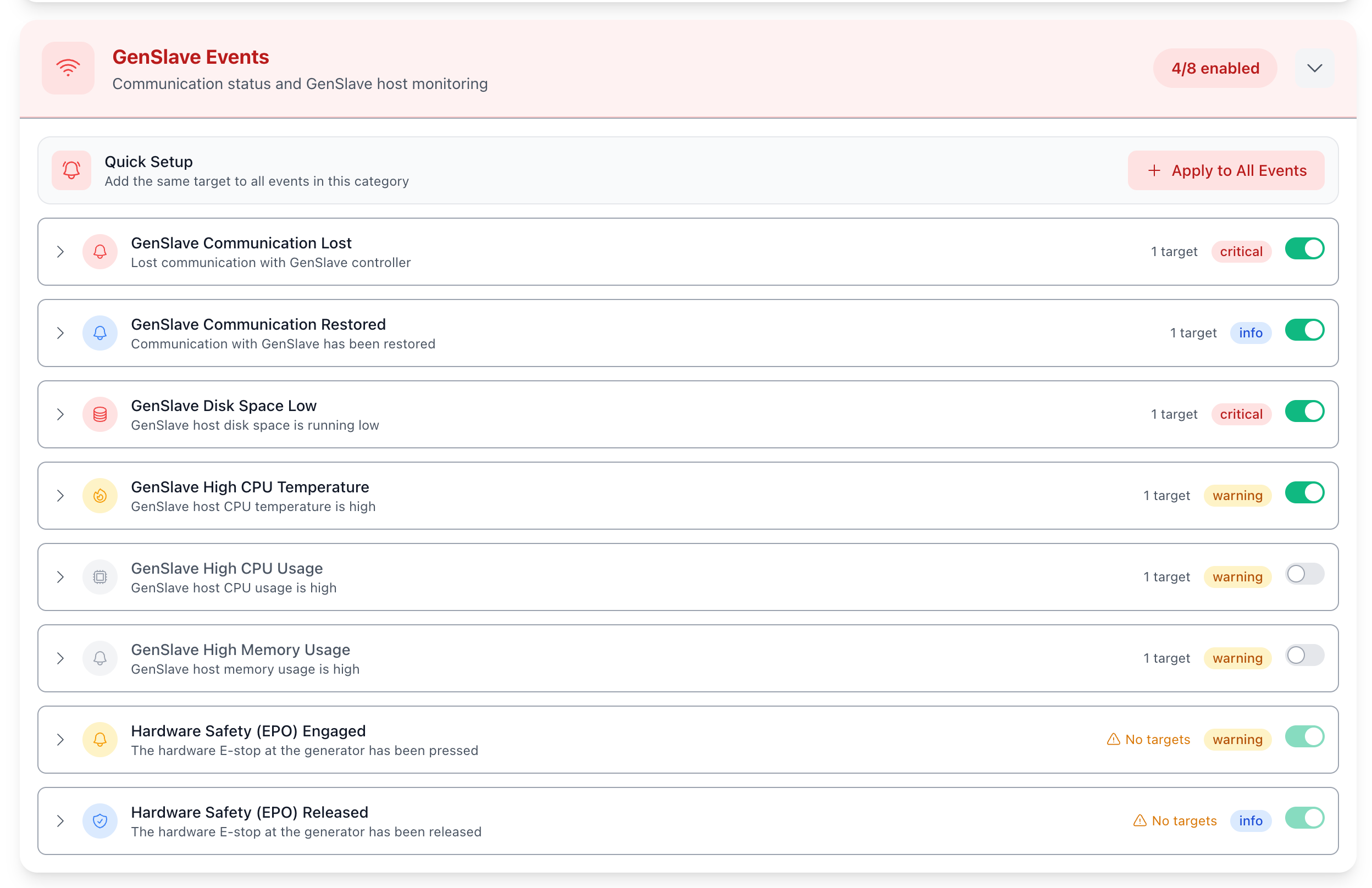
Communication status and resource health for the remote GenSlave Pi Zero, plus the two events for the optional GenSlave EPO (see Hardware Switches).
| Event | Severity | Triggers when |
|---|---|---|
| GenSlave Communication Lost | critical | GenMaster has stopped receiving heartbeats from GenSlave. |
| GenSlave Communication Restored | info | Heartbeats have resumed after an outage. |
| GenSlave Disk Space Low | warning | Free disk space on the GenSlave SD card is low. |
| GenSlave High CPU Temperature | warning | GenSlave CPU temperature is high. |
| GenSlave High CPU Usage | warning | Sustained high CPU utilization on the slave. |
| GenSlave High Memory Usage | warning | RAM usage on the slave (only 416MB total) is high. |
| Hardware Safety (EPO) Engaged | warning | The hardware E-stop at the generator has been pressed. GenMaster learns about this on the next heartbeat from GenSlave (≤60 s, often faster via the 5-second fast-poll). |
| Hardware Safety (EPO) Released | info | The E-stop has been released. Automation (Victron, schedule, HOA Run) resumes on the next heartbeat. |
The six resource and communication events are enabled by default (6/8). The two EPO events ship with no target by default — route them to whichever channel you want EPO alerts on (typically the same on-call channel as Communication Lost).
GenSlave Remote — Notification Forwarding
Below the four event categories the page shows a GenSlave Remote divider followed by a single row:
- GenSlave Notification Forwarding (Coming Soon) — When enabled, this will forward GenMaster's outbound notifications through GenSlave's independent network path, so alerts go out even if GenMaster's primary network is down. Currently shows a "Coming Soon" badge.
Global Settings
Two collapsible cards at the very bottom of the page control system-wide notification limits:
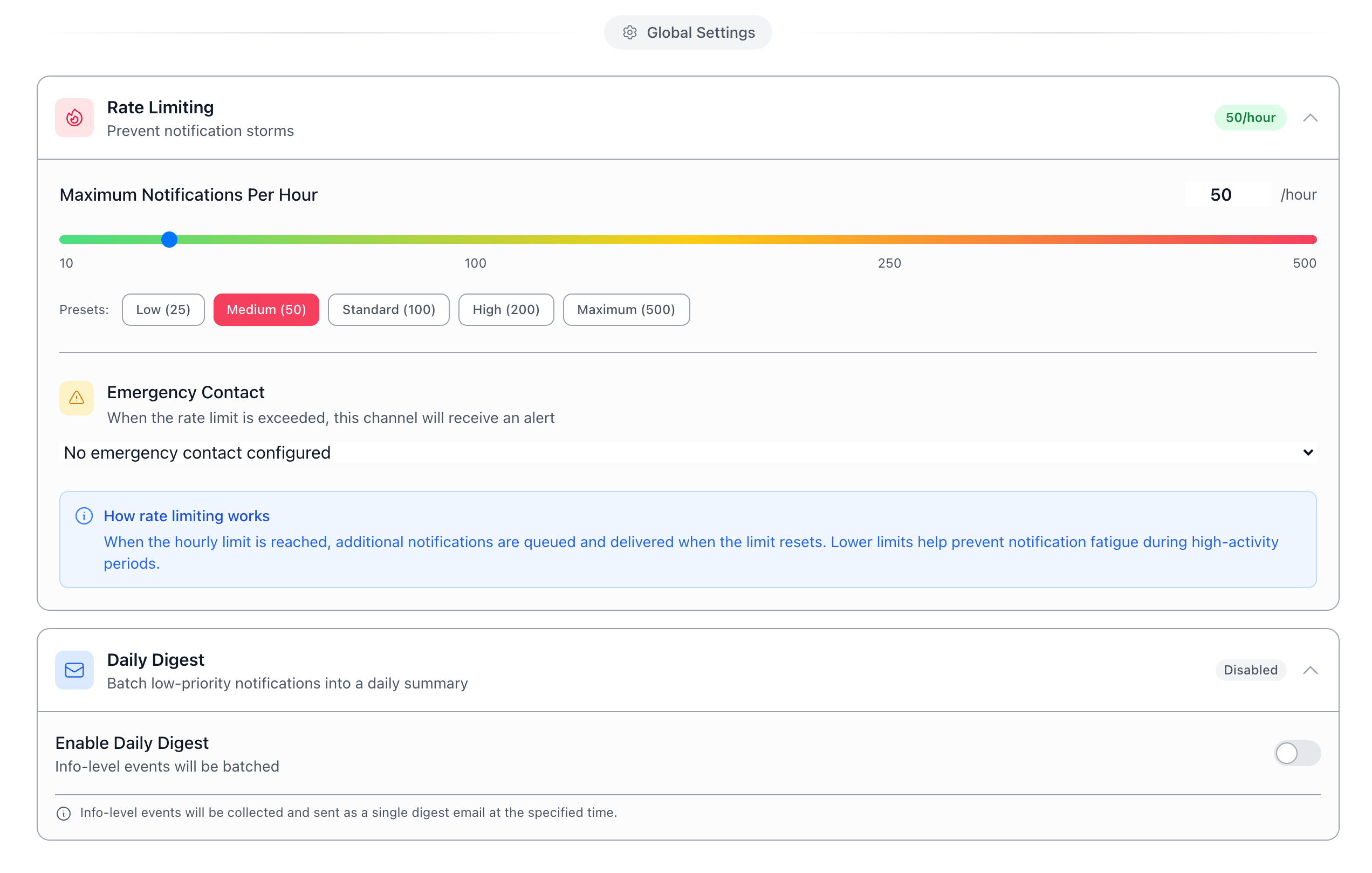
Rate Limiting
Default: 50/hour (Medium preset).
| Field | Purpose |
|---|---|
| Maximum Notifications Per Hour | Slider from 10 to 500. Default 50. Once the hourly cap is hit, additional notifications are queued and delivered after the limit resets. |
| Presets | One-click: Low (25), Medium (50), Standard (100), High (200), Maximum (500). |
| Emergency Contact | Optional channel that gets a single alert when the rate limit is exceeded — so you know throttling is in effect. Fires at most once per hour window so the alert itself doesn't pile on top of the rate-limited events. Defaults to "No emergency contact configured". |
Why rate limiting matters
Without a cap, a runaway loop (a container flapping unhealthy/restarted every 30 seconds, for example) could push thousands of notifications to your phone in an hour. The rate limiter throttles outbound delivery so a single failure mode can't drown your inbox or get you SMS-blocked by your carrier.
Daily Digest
Default: Disabled.
| Field | Purpose |
|---|---|
| Enable Daily Digest | Toggle. When on, low-priority (info) events are batched. |
| Info-level events are collected throughout the day and sent as a single digest email at the configured time, rather than one notification per event. |
Use Daily Digest if your info-level events are noisy (lots of starts/stops/heartbeats) and you'd rather see a once-a-day summary than each one individually. warning and critical events bypass the digest and fire immediately.
History
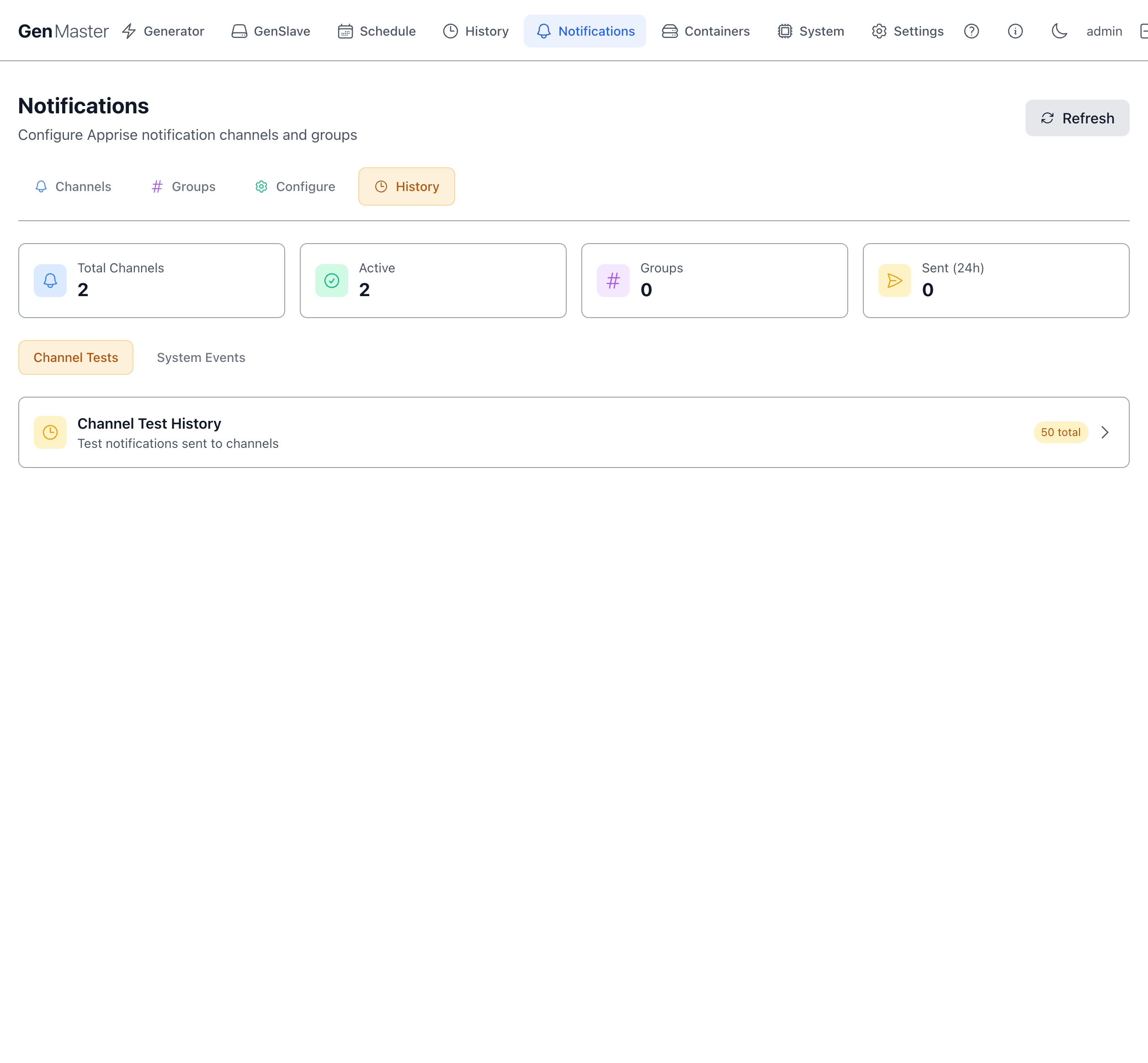
A log of every notification sent: timestamp, event type, target channel, status (delivered / failed / queued), and a preview of the rendered message body.
Use this to:
- Confirm an alert actually fired during a recent incident.
- Debug a channel that's silently failing (look for repeated
failedrows). - Verify your channel routing is what you expected.
Two notification systems, one app
It's worth understanding that GenMaster and GenSlave maintain separate notification configurations:
- GenMaster notifications — what you configure on this page. Sent from the master Pi 5 over the host's network. If GenMaster is down, these don't fire.
- GenSlave notifications — configured on the GenSlave page. Sent independently from the Pi Zero. These fire even when GenMaster is down, which is the whole point of the failsafe.
For the most resilient setup, configure at least one channel on both sides — they're your two independent paths to find out something is wrong.
What's next
- Set up the slave-side independent failsafe alerts: GenSlave → Notification Settings.
- Read more about Apprise URL formats: Apprise wiki.
- For the older webhook-based notification approach, see Notifications guide.
- Set up the EPO and HOA hardware switches that fire most of the new events: Hardware Switches.